
Log Your Day with a Check In
Want JumpTracker Pro to track hourly earnings, not just jump metrics? This case study shows a simple routine: start the day with a Check in, log jumps as they happen, and close out the day with your end time and final counts.
The scenario: a tandem instructor working a full day at the dropzone who wants accurate hours, per-jump details and a day total, without remembering everything at the end of the day.
The idea
Section titled “The idea”JumpTracker Pro can store a start and end time on any logged day and works out your total hours for you. Tracking hours also let’s you calculate your average hourly pay rate, a useful metric to know.
To clock your check in time when you arrive, you log a service with zero pay: a Check in. This locks the start time and everything else you log that day lands on the same day in your Logbook.
Step 1: Add a Check in service
Section titled “Step 1: Add a Check in service”You only do this once per location.
- Open Add New Service.
- Set Service Name to
Check in. - Set Category to
Misc, and pick your Location (or turn on Add to all locations). - Set Service Type to
Other. - Leave Base Rate at
0.
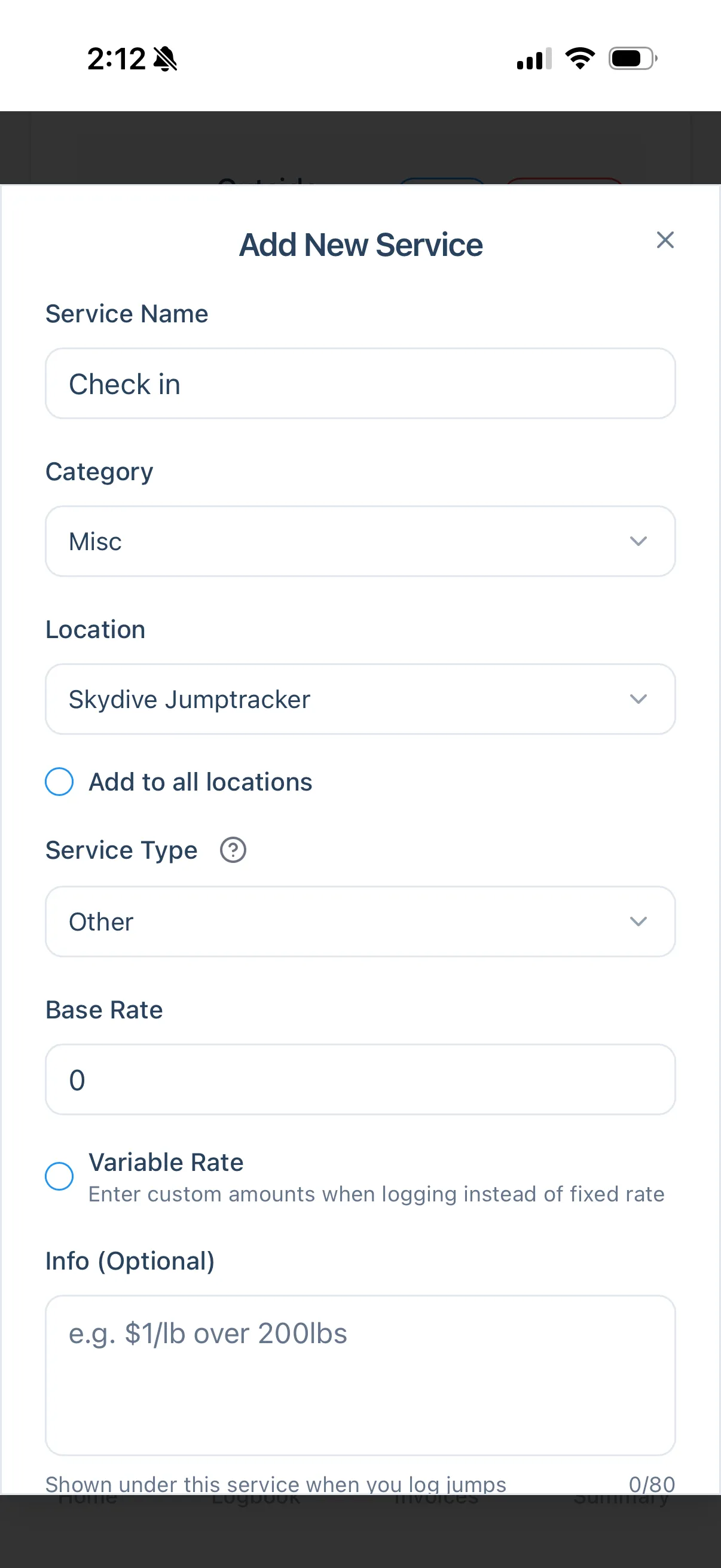
Because the rate is $0, checking in never changes your earnings. It exists only to lock your start time.
Step 2: Check in when you arrive
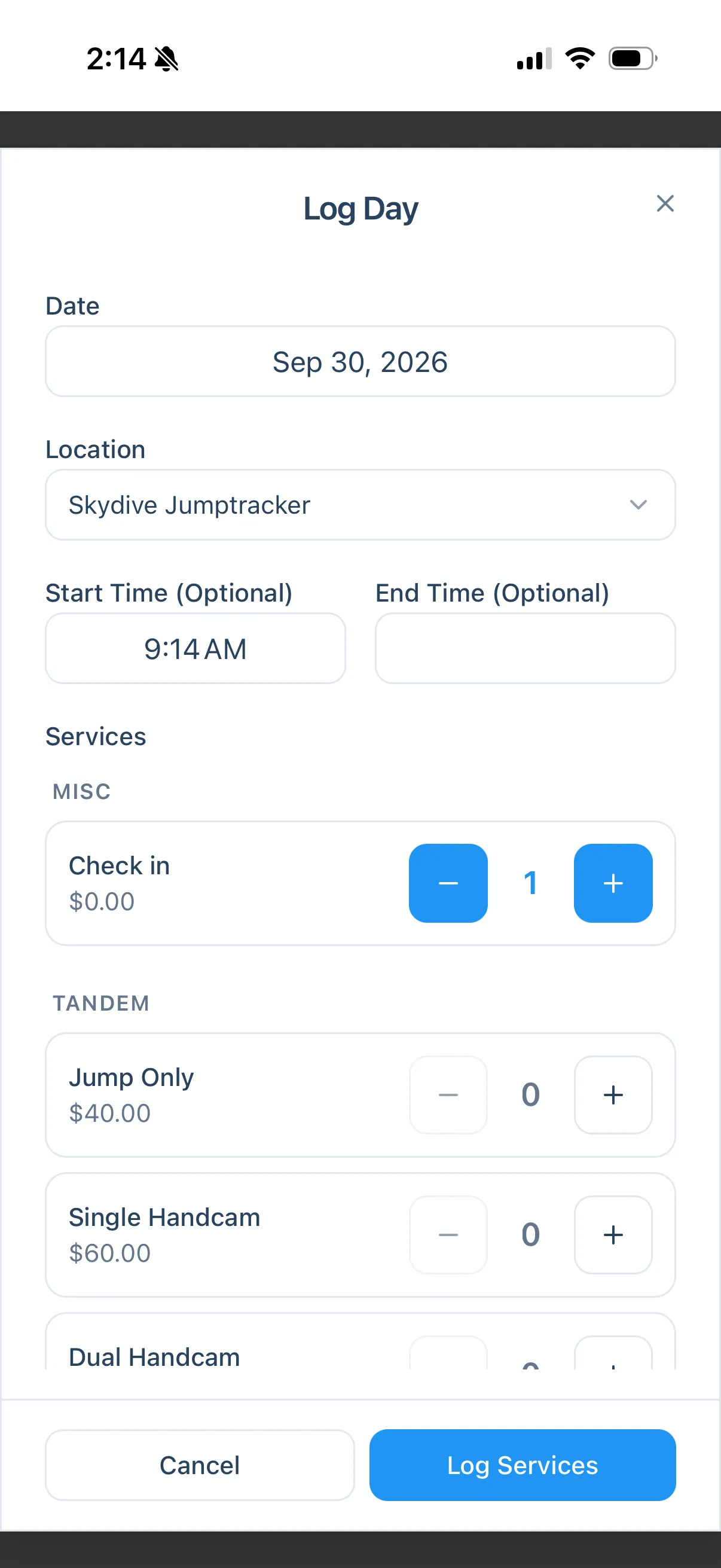
Section titled “Step 2: Check in when you arrive”When you get to the dropzone, open Log Day, confirm the date and location, and set your Start Time. Leave End Time empty for now. You’ll update it later.
Step 3: Logging jumps
Section titled “Step 3: Logging jumps”Pick whichever of these fits how you work. You can mix them during the same day.
Scenario A: Log single jumps
Section titled “Scenario A: Log single jumps”After each jump, open Log New Service and choose the service. Add any Modifiers that applied (in this example a dual handcam and a variable overage amount), plus Tips and Service Notes if you like.
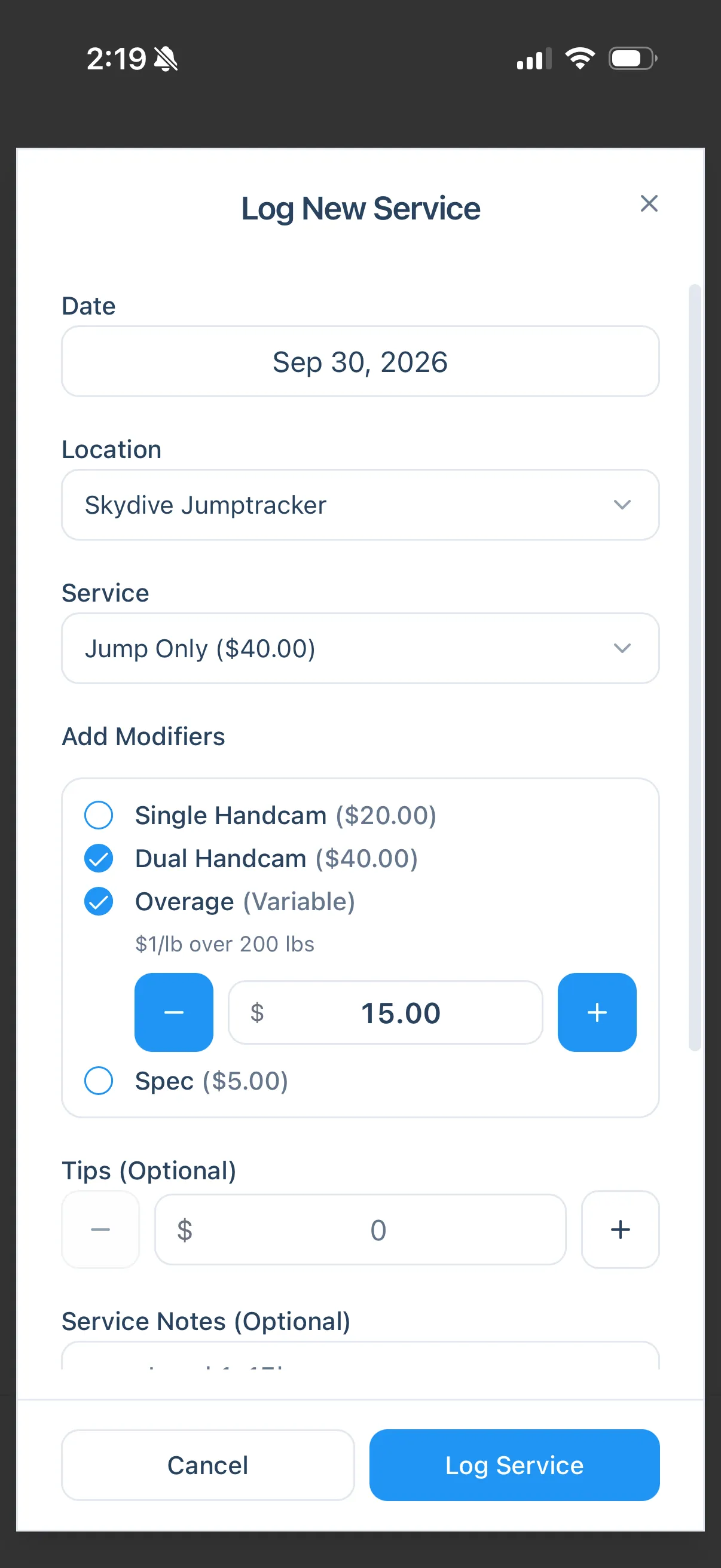
In this example I’ve got a Variable overage, and I’ve added a memo on that service’s Info field to remember how the dropzone pays out for it.
Scenario B: Bulk log at the end of the day
Section titled “Scenario B: Bulk log at the end of the day”If you prefer to just log everything at the end of the day via the Log Day form, skip to step 4.
Scenario C: Use Day Notes and import a Burble CSV afterwards
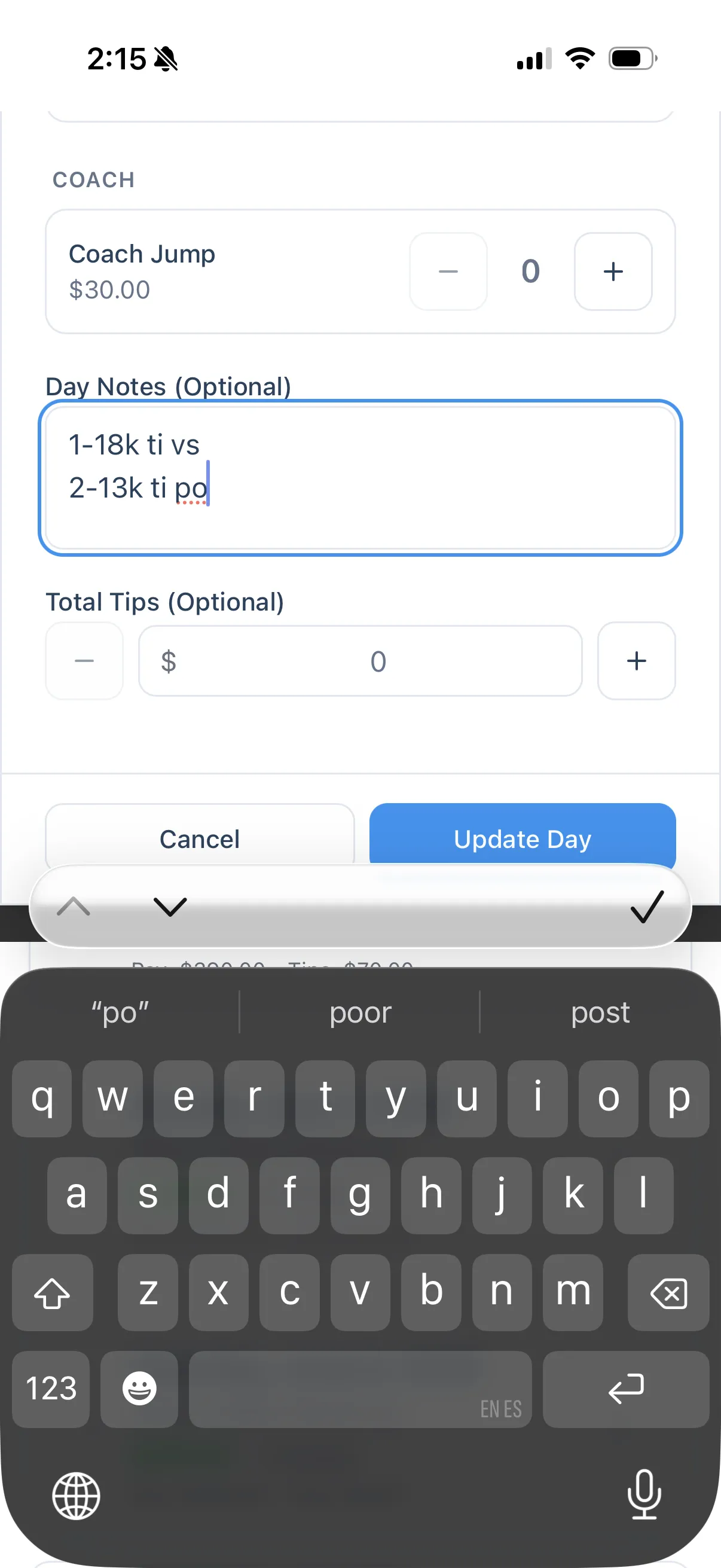
Section titled “Scenario C: Use Day Notes and import a Burble CSV afterwards”If you plan to import your Burble logbook afterward, jot short notes during the day. In the day’s Day Notes field, write one line per jump (for example, load number, altitude, jump and video details) so you can reconcile them later.
Step 4: Close out the day
Section titled “Step 4: Close out the day”At the end of the day, go back to your Logbook and edit the day.
- Find today’s entry and tap the ⋮ menu.
- Choose Edit Day.
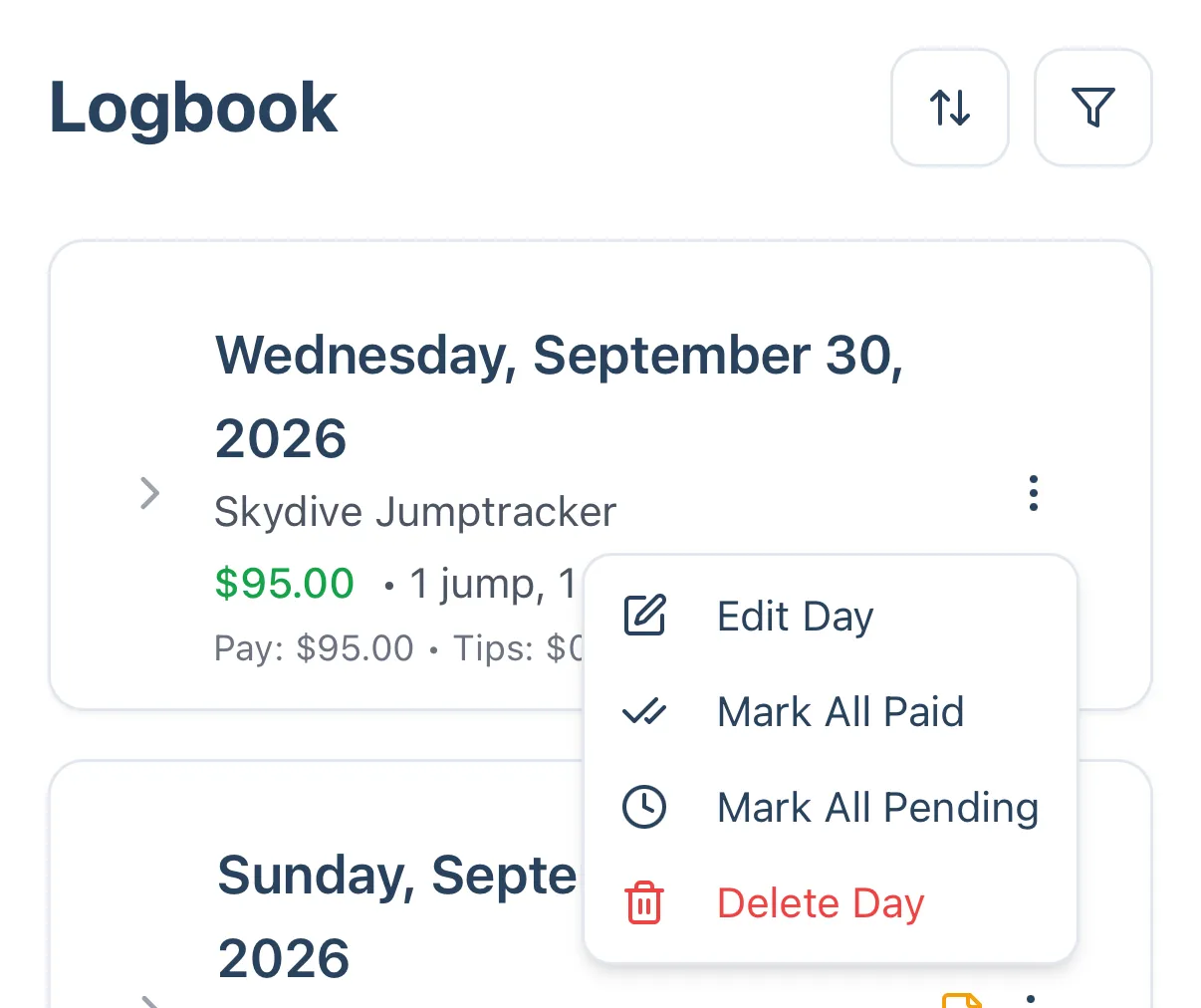
- Enter your End Time. JumpTracker Pro fills in Total Hours for you.
- Adjust the service counts to match what you actually did, then tap Update Day.
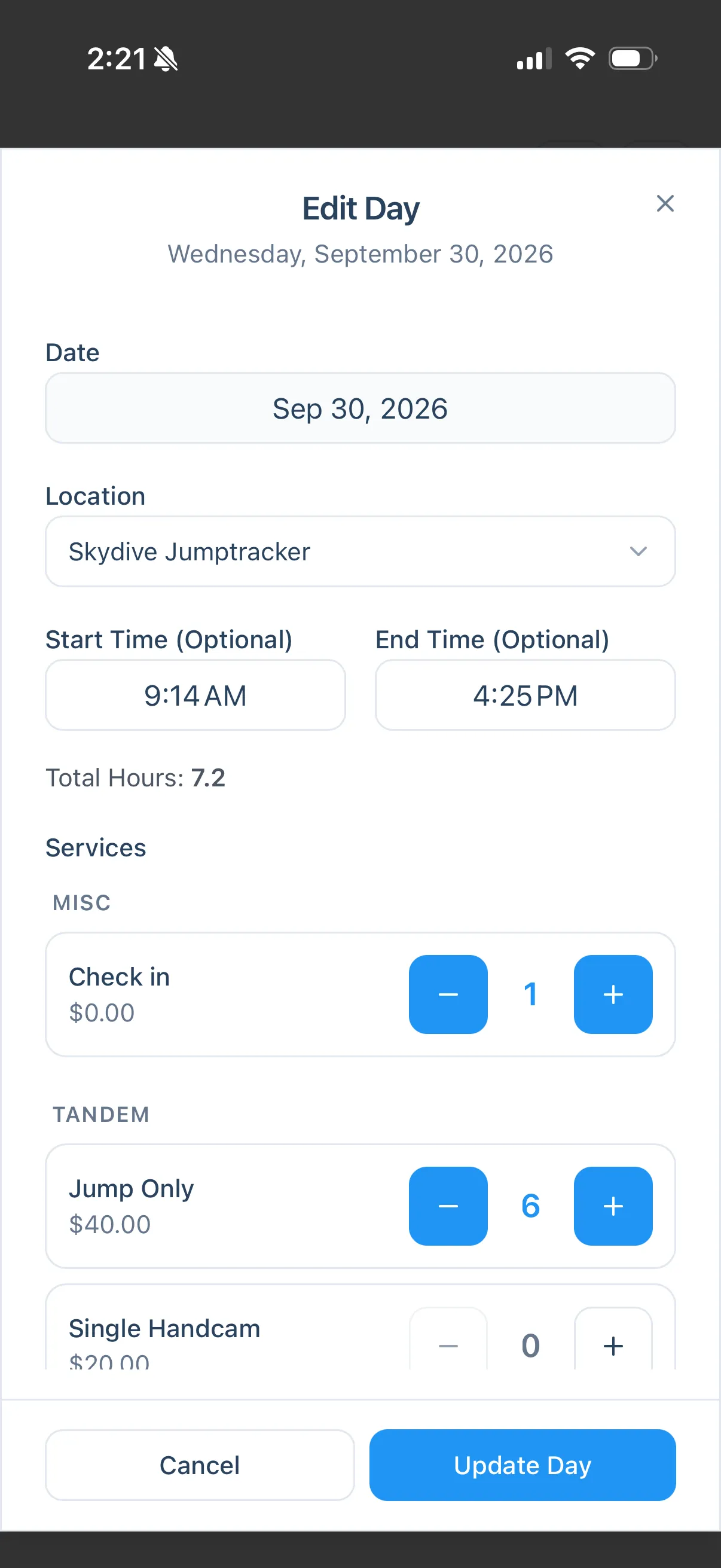
What you end up with
Section titled “What you end up with”- One Logbook entry for the day, with your start and end times and total hours.
- Your final jump counts and earnings, plus tips and notes.
- No extra pay from the Check in itself, since it’s $0.
- A Summary page that tracks your average hourly earnings as well as other metrics.
- Start the day with the Check in even if you log nothing else until evening. It’s what records your start time so you don’t have to remember it.
- Checking in and closing out the day when it actually occurs makes it easy to punch the right time. If you forget, you can still add them later from Edit Day.